Organizations
An organization is the ownership and billing boundary in someones.computer: every application belongs to one, and your role in it (owner, admin, or member) controls what you can do there. When you registered, a personal organization was created for you automatically with you as its owner — this page covers creating additional ones, for example to separate a client's work from your own.
Viewing your organizations
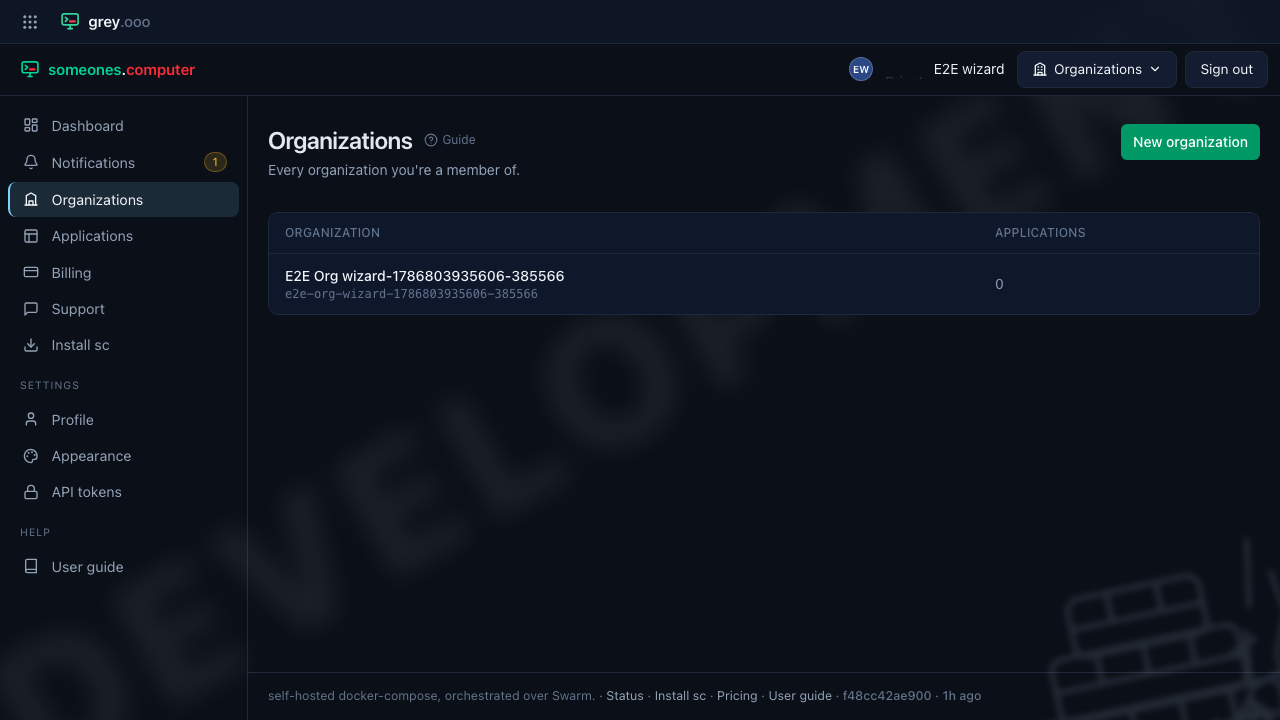
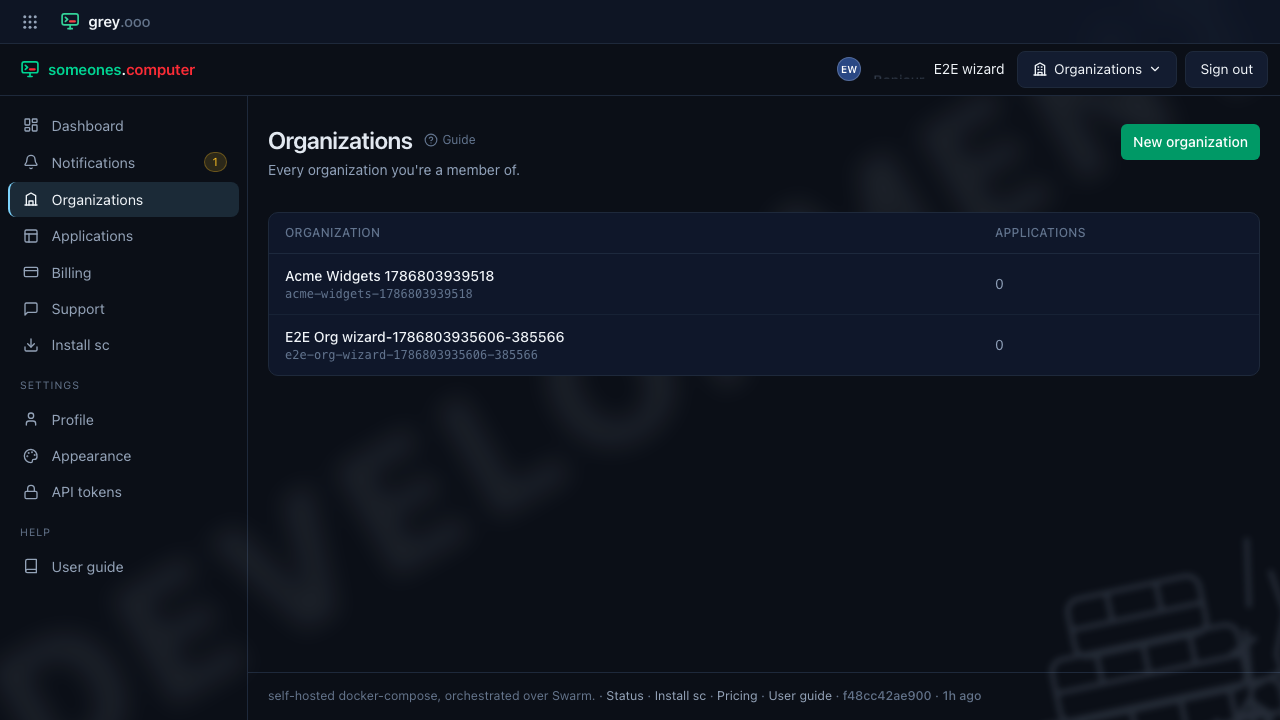
The Organizations link in the sidebar lists every organization you're a member of, and how many applications each one has.
Creating an organization
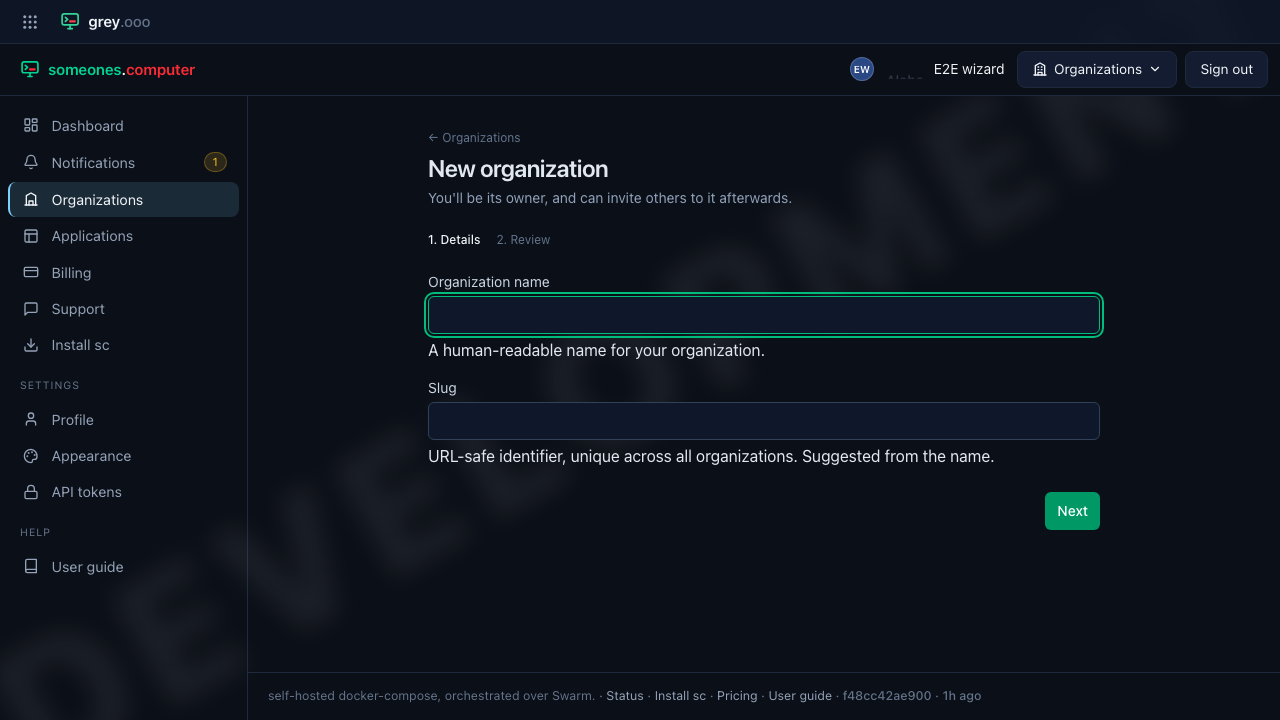
Click New organization to start the wizard. Any signed-in user can create one — you don't need to belong to an existing organization first, and you become its owner automatically.
1. Details
Give it a name. The slug — the URL-safe identifier used in links and, later, resource names — is suggested from the name as you type, so you can usually leave it alone. Edit it yourself if you want something different; once you do, it stops following the name.
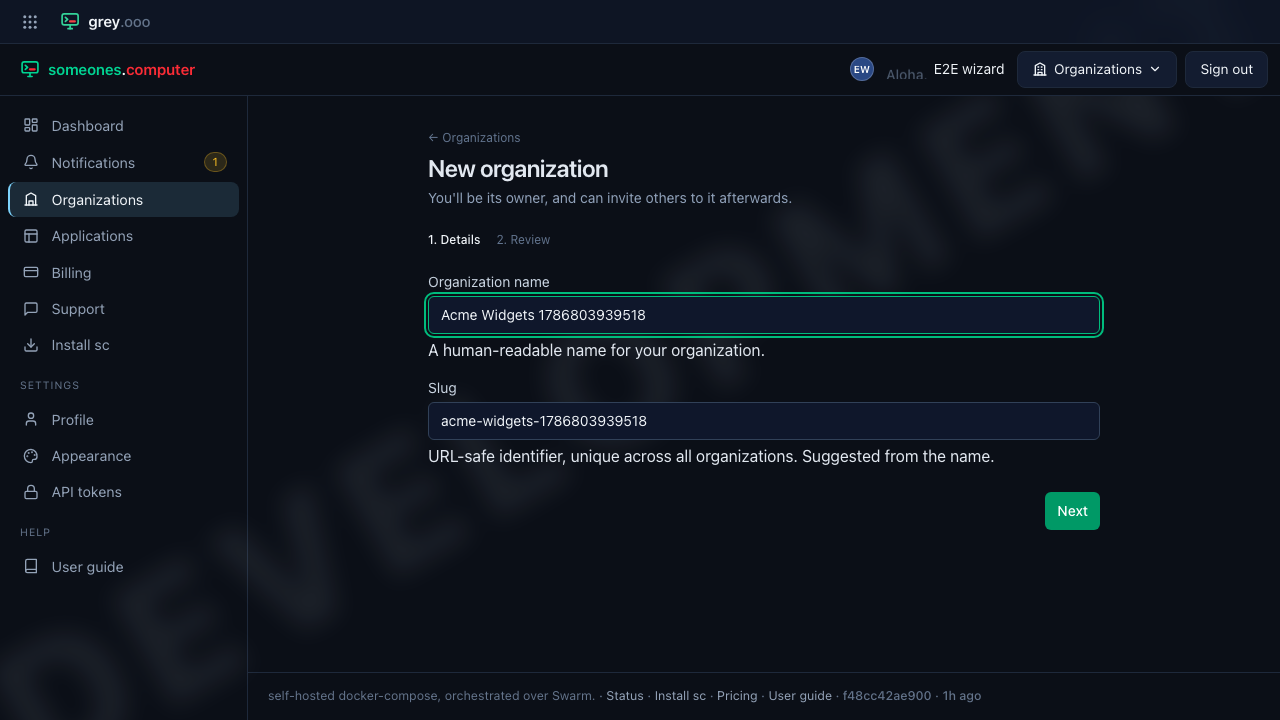
The slug must be unique across all organizations on the platform, lowercase letters/numbers/dashes only, and can't start or end with a dash.
2. Review
Check the name and slug, then go back if anything needs fixing.
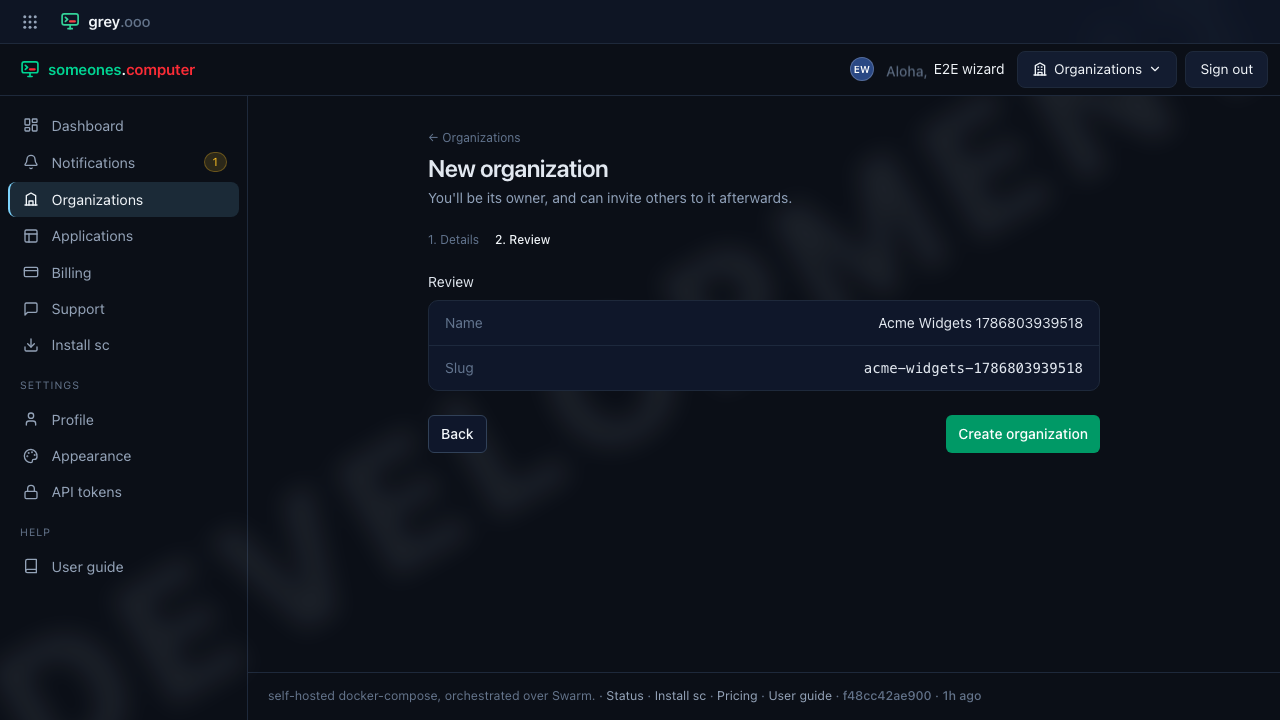
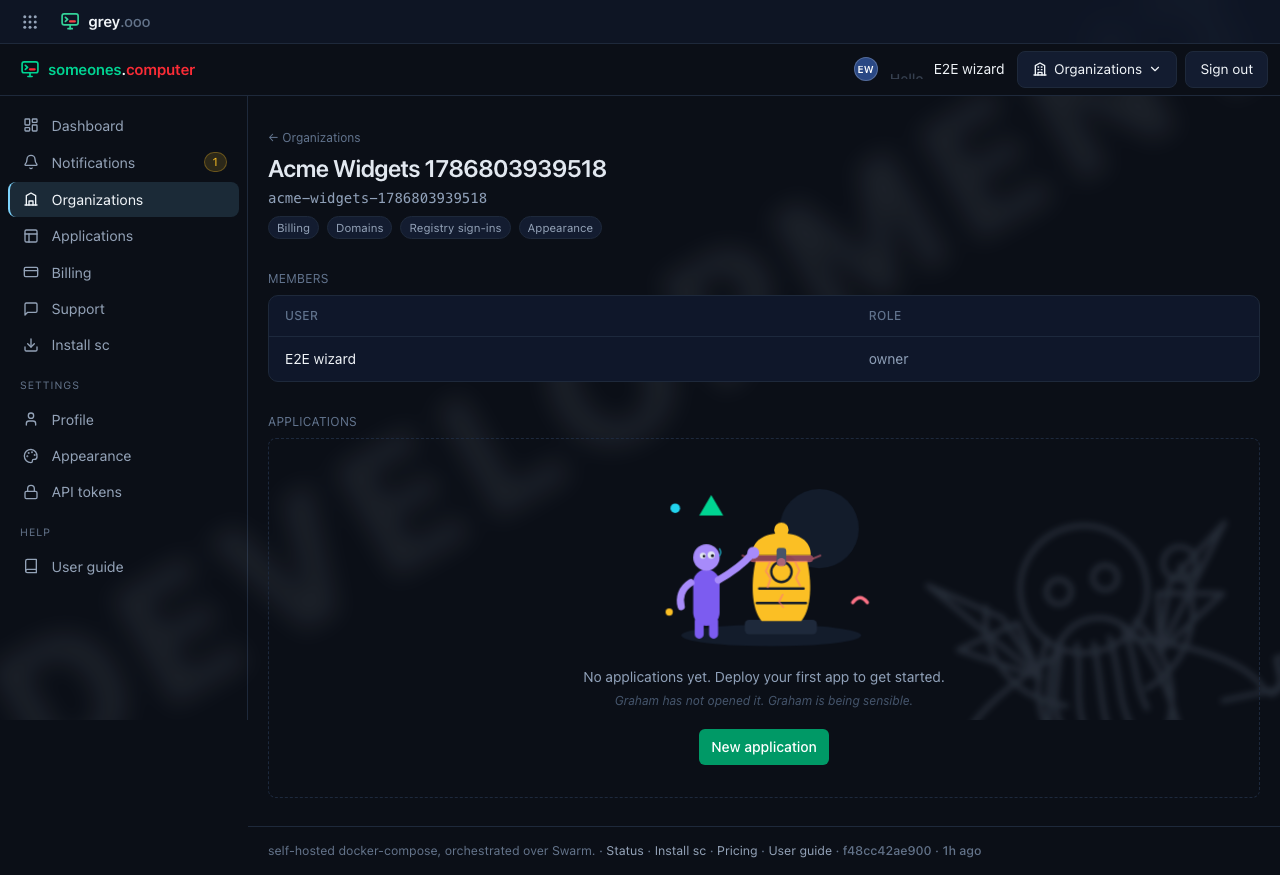
Click Create organization to finish. You're taken straight to the new organization's page, and it now appears in your organizations list.
If the slug is already taken
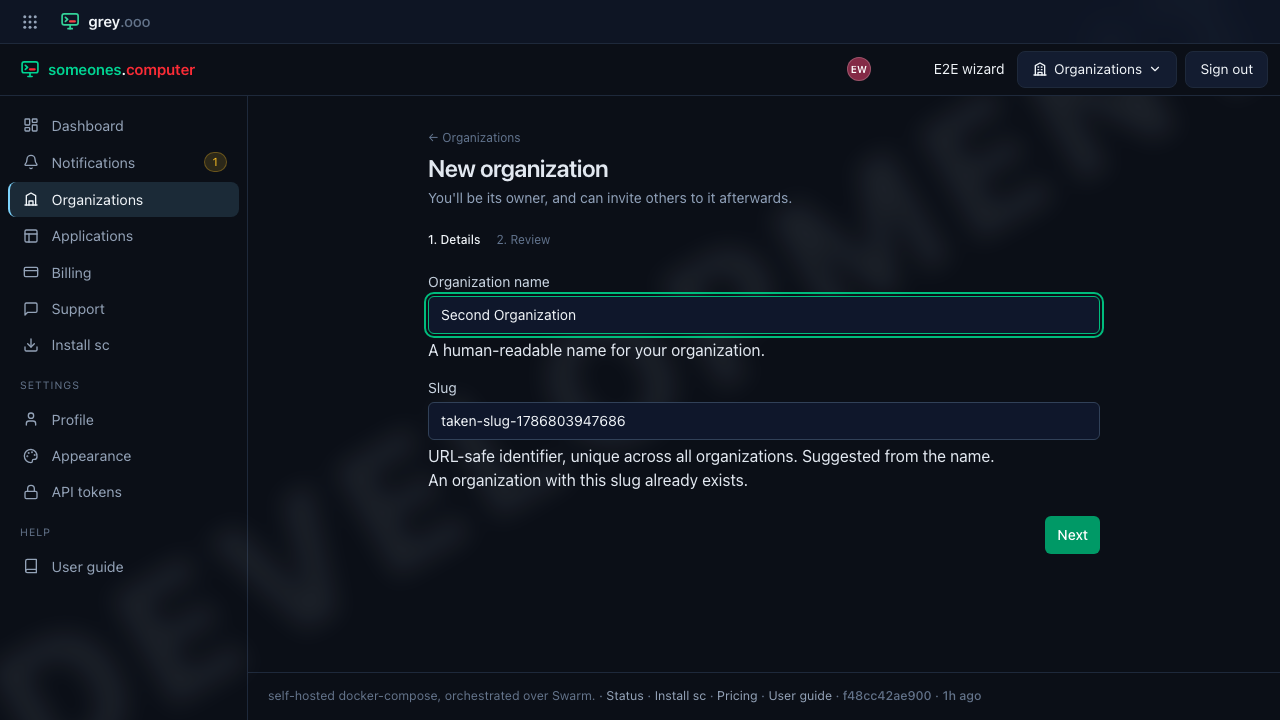
Slugs are shared platform-wide, so a name someone else has already used (or one you've already used yourself) will be rejected. The wizard jumps back to the Details step and shows the error under the Slug field — just change the slug and continue.
What you can do from here
The organization's page lists its members and their roles, and the applications it owns. To create an application inside it, go to Applications → New application — it'll be available there once you're an owner or admin of at least one organization.
Two badges under the organization's name lead elsewhere:
| Badge | What it's for |
|---|---|
| Billing | The organization's balance and top-ups — see billing. |
| Registry sign-ins | How this organization signs in to registries that aren't ours, so a compose file naming a private image can be pulled. |
Registry sign-ins
One sign-in per registry host — you have one account at ghcr.io, not one per
application — recorded as a registry, a username, and a password. Any member can
see which registries are signed in to; only an owner or admin can add or remove
one. The password is never shown again: it's encrypted at rest, no page
loads it back, and saving a registry you already have simply replaces it.
This is the opposite direction from a registry key, which is your credential for pulling from our registry. Sign-ins are for pulling in from someone else's.
What testing covers here
The wizard's step navigation, slug auto-suggestion, and "stop suggesting once
edited by hand" behaviour all happen client-side
(assets/controllers/wizard_controller.js,
slug_suggestion_controller.js) — no request to assert against — so they're
covered by e2e/tests/organization-wizard.spec.ts in a real browser rather
than PHPUnit's BrowserKit-based functional tests, which can't see JavaScript
that never round-trips to the server. The duplicate-slug rejection is the one
case that does hit the server (the uniqueness check), included here because
it's what sends the wizard back to the Details step with an inline error —
also a client-side transition. Every screenshot on this page is captured
during that test run (e2e/tests/helpers/screenshot.ts), so it stays in sync
with the real app rather than a manually-updated mockup.