Appearance
The control panel comes in four themes. Which one you see is your choice, falling back to your organization's, falling back to whatever the platform is set to. Open Settings → Appearance in the sidebar.
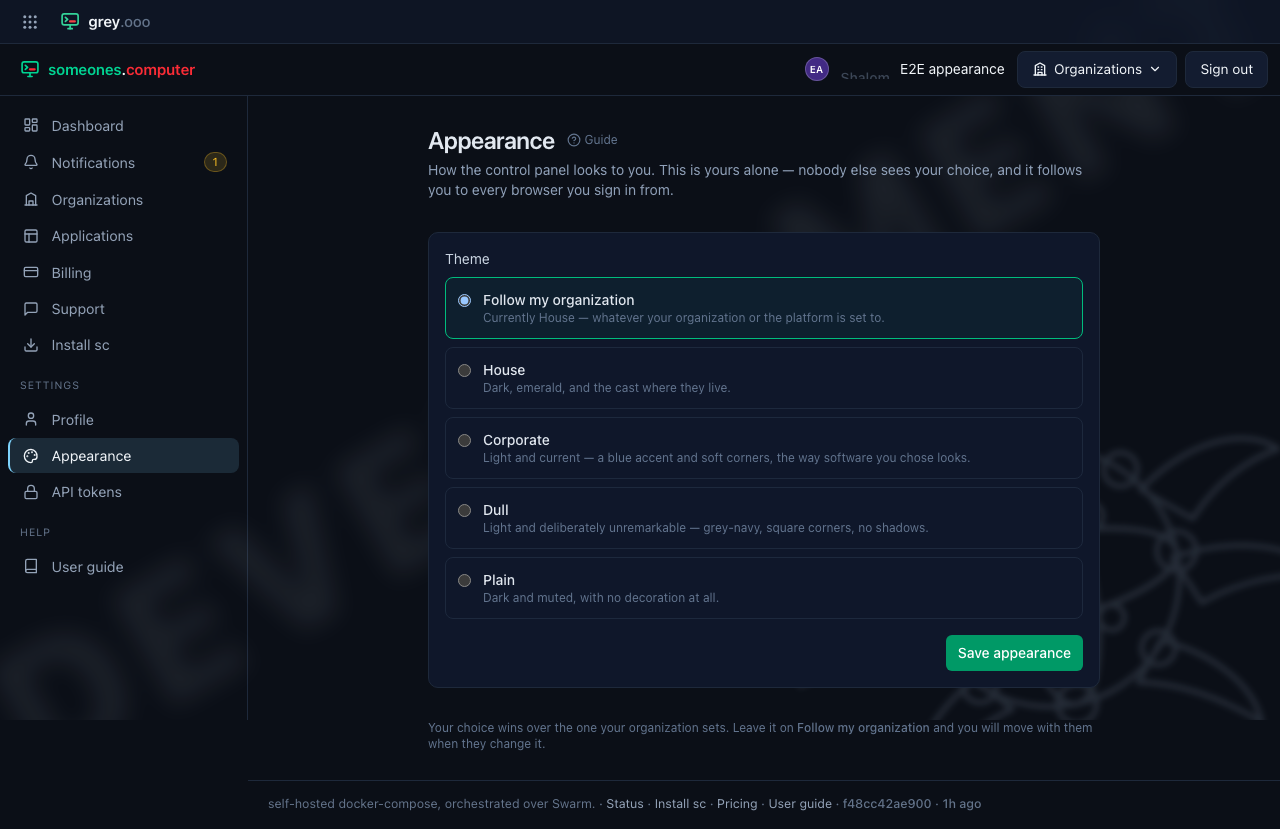
The four themes
| Looks like | |
|---|---|
| House | Dark, emerald green, with the characters that live in the empty states on show |
| Corporate | Light, a blue accent, softly rounded — current-looking software |
| Dull | Light, grey-navy, square corners and no shadows — deliberately unremarkable |
| Plain | Dark and muted, with no decoration at all |
Nothing moves or is hidden between them. Every page has the same content, the same controls in the same places; only the colours, the corners and the decoration change.
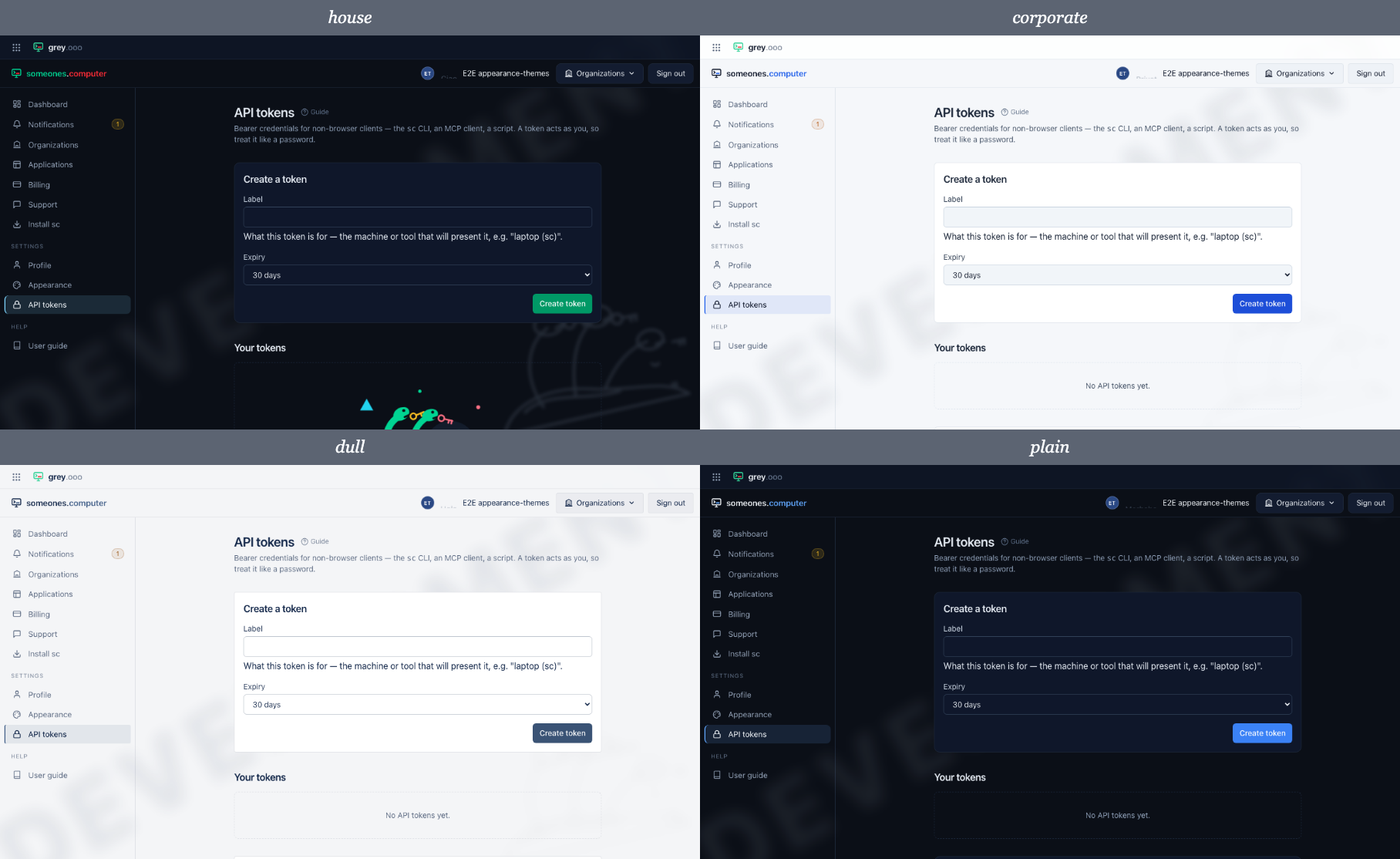
Two of them are light and two are dark. If you are choosing on comfort rather than taste, that is the distinction that matters.
Follow my organization
The first option is not a theme. It means "I have no opinion — use whatever my organization or the platform says", and it is what every account starts on.
The label tells you what that currently resolves to, so choosing it is not a guess:
Follow my organization — Currently House. Whatever your organization or the platform is set to.
Leave it there and you move with your organization when they change their mind. Pick a theme instead and you keep it, whatever anybody else does.
Your choice is yours alone. Nobody else sees it, it does not affect your colleagues, and it follows you to every browser you sign in from — it is stored against your account rather than in the browser.
Setting it for a whole organization
An organization has its own appearance page, reached from the Appearance badge on the organization's page, beside Billing and Domains.
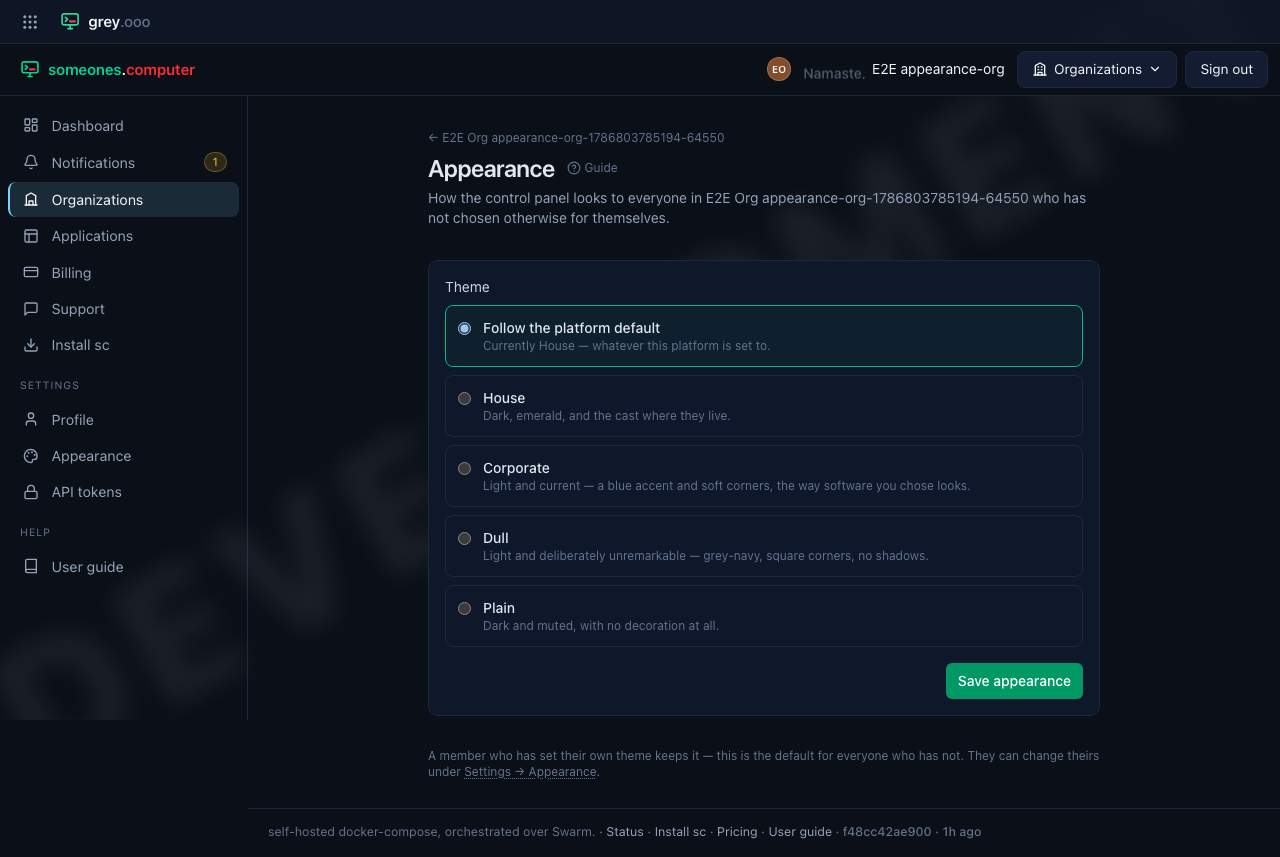
What you set there is the theme for everyone in that organization who has not chosen one for themselves. It is a default, not a rule: a member who has picked their own keeps it.
Only an owner or an admin of the organization can change it. Everyone else sees the page and what it is set to, without the save button — "why does this look like that" is a fair question for any member to be able to answer.
If you set an organization's theme while holding a personal one, the page will tell you that this will not change how you see the platform. That is not a failure — your own choice outranks it. Set yourself back to Follow my organization to see what your colleagues see.
Which theme wins
Three levels, most specific first:
| Set by | Beats | |
|---|---|---|
| You | Settings → Appearance | everything |
| Your organization | an owner or admin, on its Appearance page | the platform default |
| The platform | whoever runs this installation | — |
The middle level has one wrinkle worth knowing if you belong to more than one organization. On a page that belongs to a particular organization, that organization's theme applies. On pages that span all of them — the dashboard, the application list — an organization theme is used only if every organization you are in agrees on it. If two of them disagree, you get the platform's, because there is no honest way to pick a winner.
Belonging to one organization, which is the ordinary case, none of that applies: you simply see its theme everywhere.
Screenshots in this guide
The pictures throughout this guide are taken in the platform's own theme. If your installation runs something other than the house style and a screenshot here does not match what is on your screen, the layout is still right — the colours are the theme, and nothing else has moved.
Related
- Profile — your display name and avatar, the other half of Settings
- Organizations — creating one, and who can administer it