Getting started
Creating an account and signing back in — the entry point for everything else in this guide.
Creating an account
Open Create one from the sign-in page, or go straight to /register. You
need a display name, a username, an email, an organization name, and a
password typed twice. There are then two gates in front of the account, in this
order: confirm your email address, and then wait for a platform
administrator to approve it.
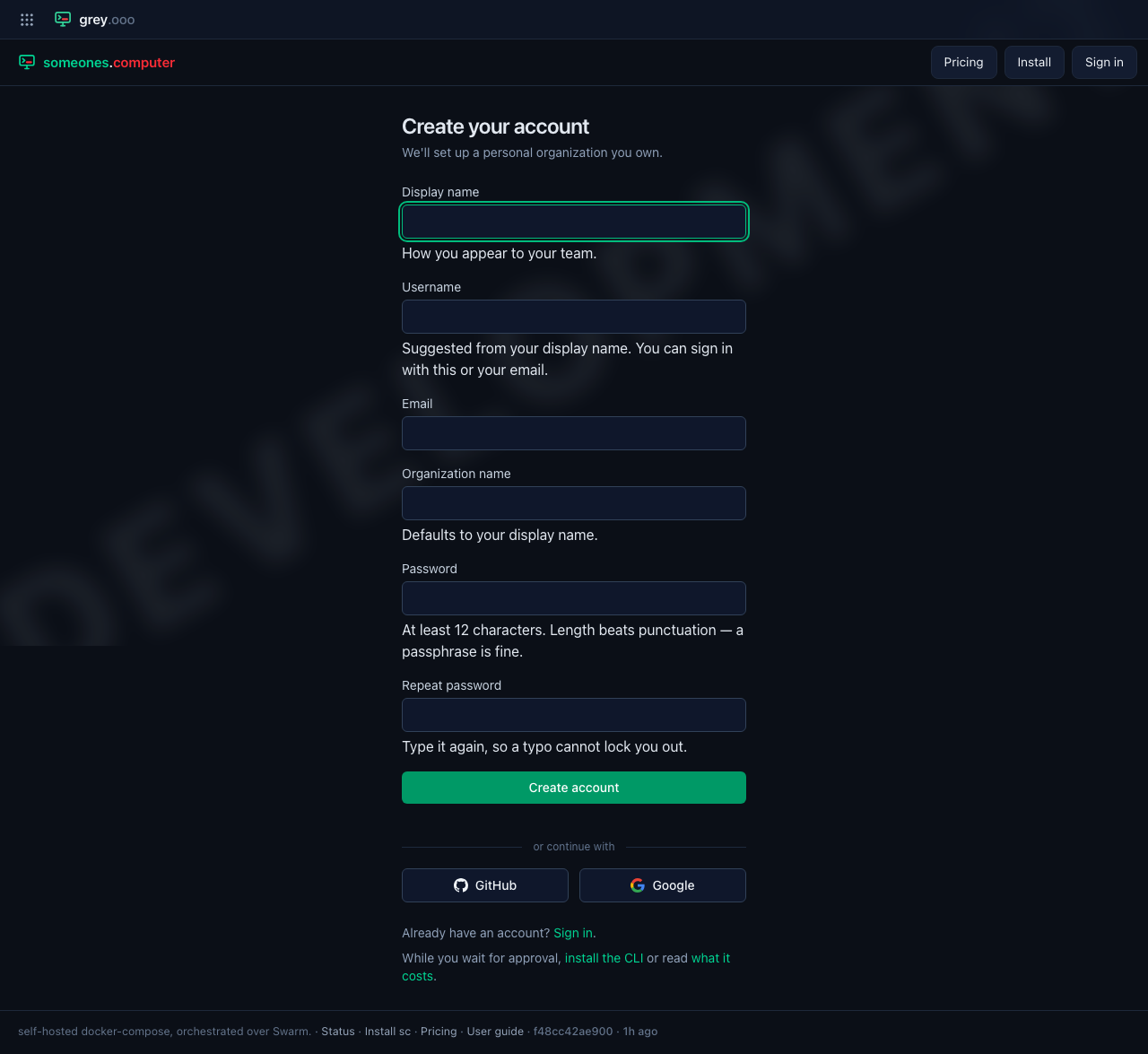
The username field suggests itself from your display name as you type, the same auto-suggest pattern used for organization slugs (see Organizations). The organization name defaults to your display name too, but every field stays editable.
The password rules are length and nothing else. At least 12 characters, no requirement for a capital, a digit or a symbol — a passphrase you can remember beats a short string of punctuation you can't. The one other check is that the password hasn't turned up in a known public breach; if it has, you're asked for a different one. That check sends the first five characters of a hash, never the password itself, and if the service is unreachable your sign-up goes through anyway.
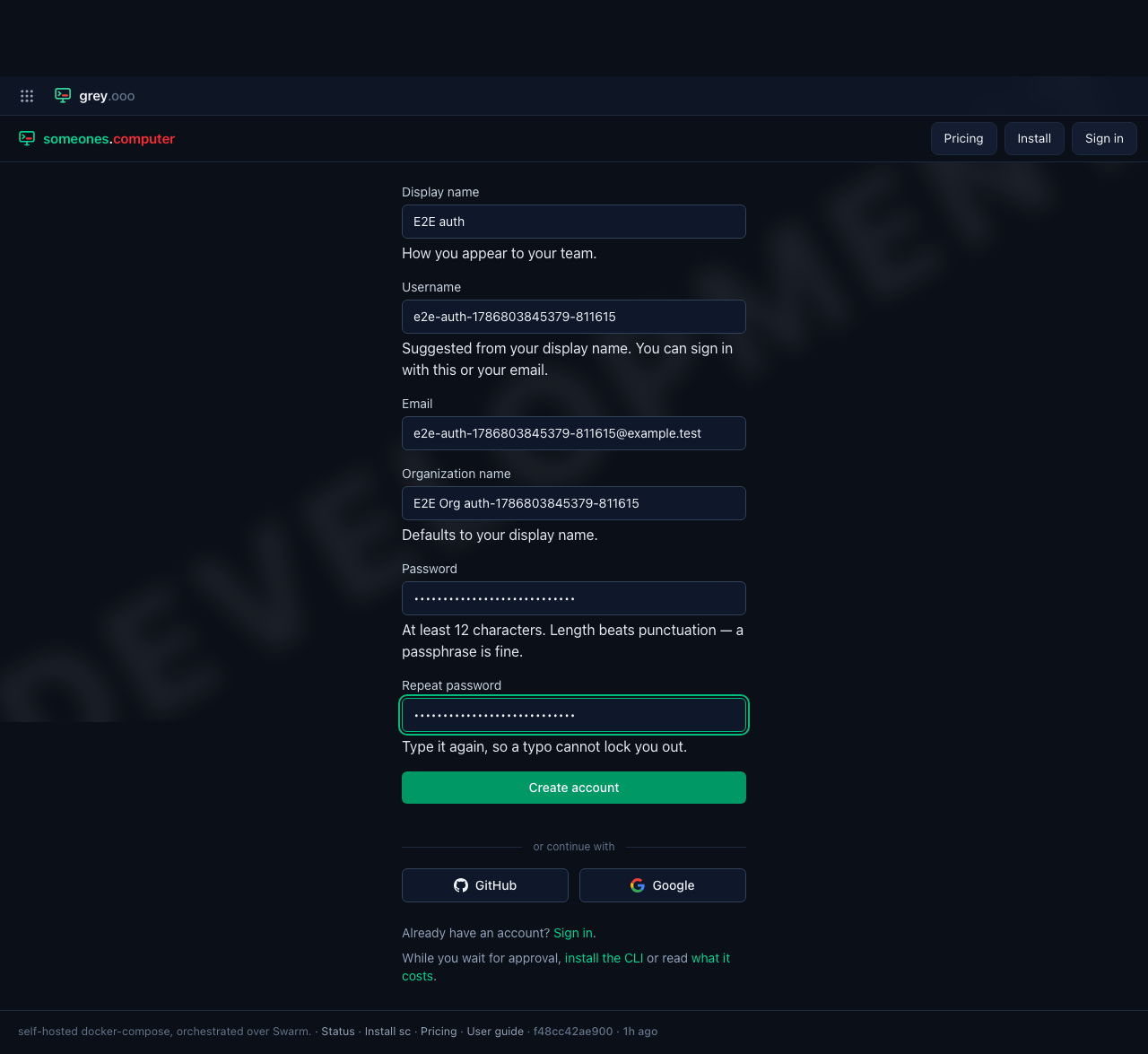
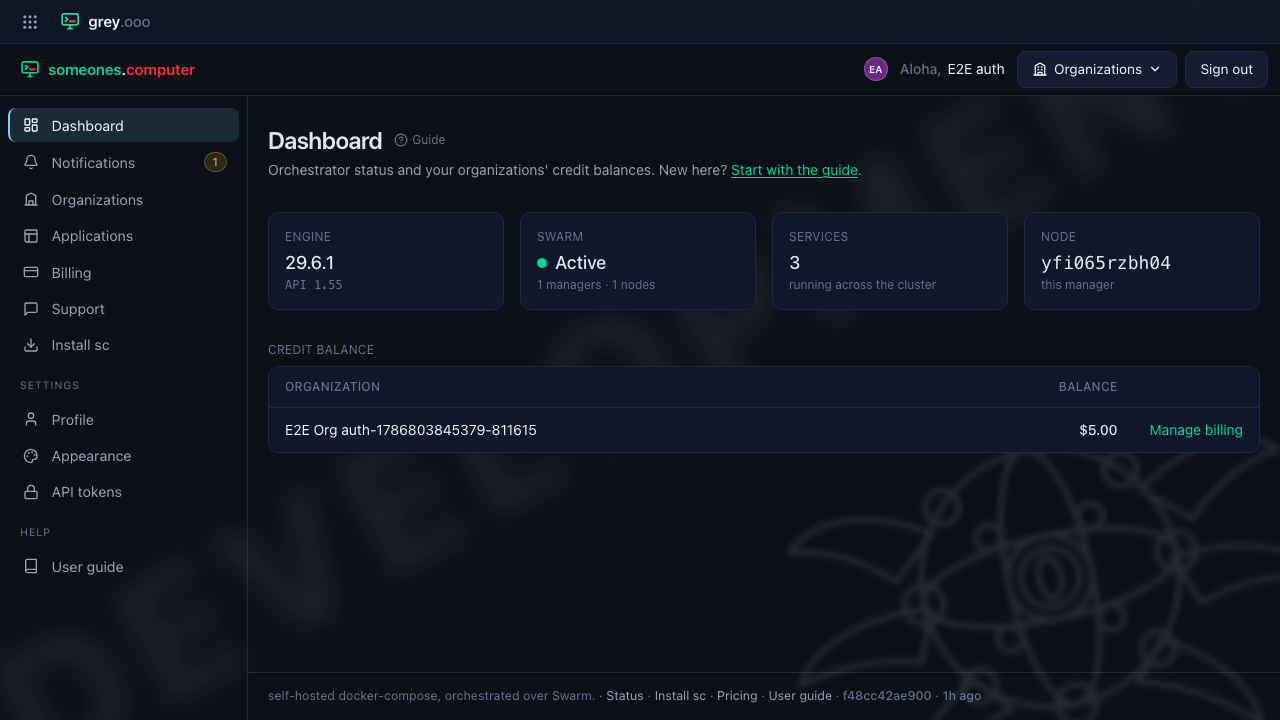
Submitting creates your account and a personal organization you own, then puts you on the first holding page: you're signed in, and everything else redirects back here until you open the link we've just emailed you.
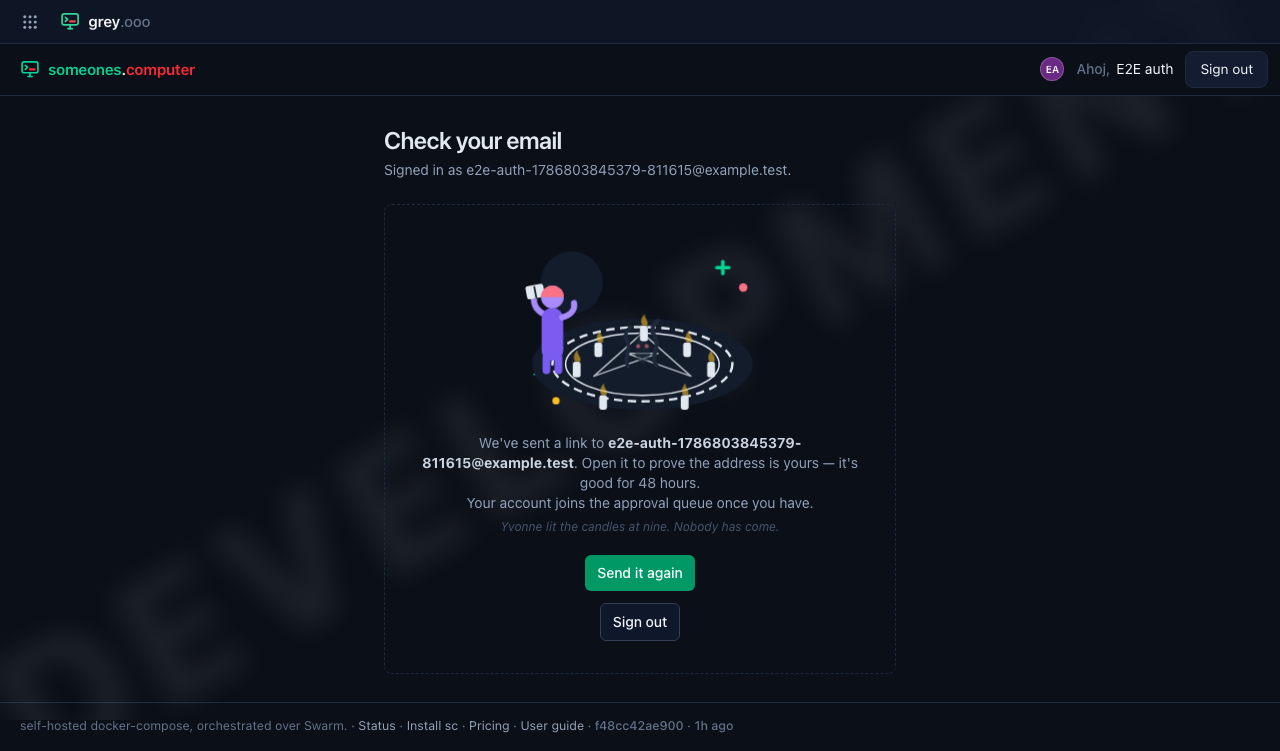
Send it again issues a fresh link to the same address — useful if the first one never arrived, or if it sat unread for too long.
| How long the link lasts | 48 hours. Long enough to survive a weekend; ask for a new one after that |
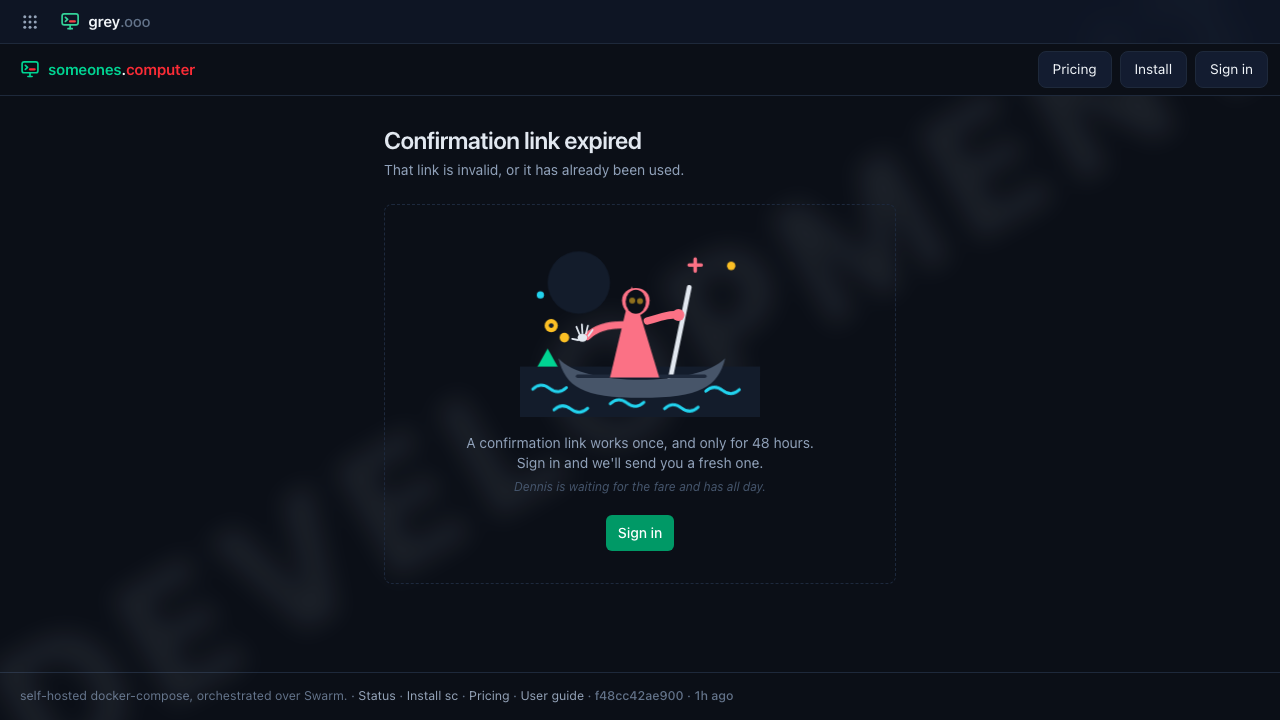
| How many times it works | Once. Opening it a second time shows "Confirmation link expired" |
| Whether it signs you in | No. Confirming settles the address and nothing else, so the link is safe to open on any device |
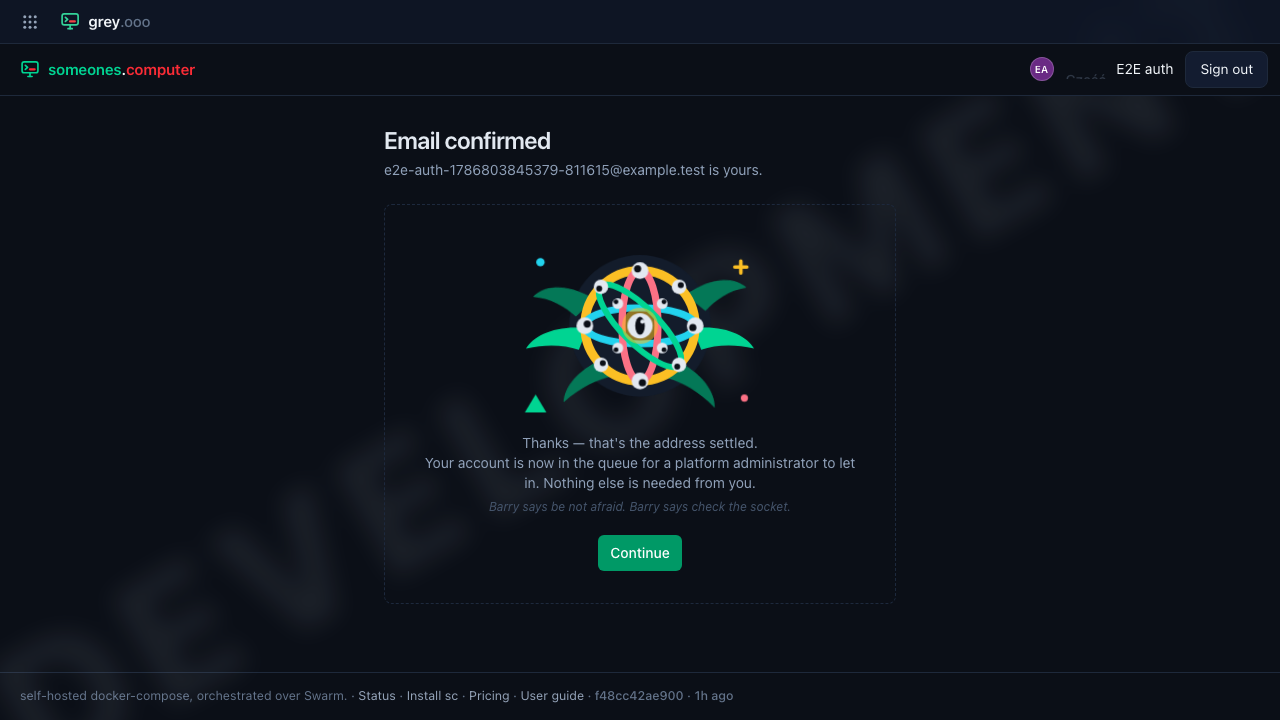
Until you've done that, your account isn't in the approval queue at all — an administrator never sees a sign-up whose address is still just a claim. Opening the link puts it there, which is the second holding page:
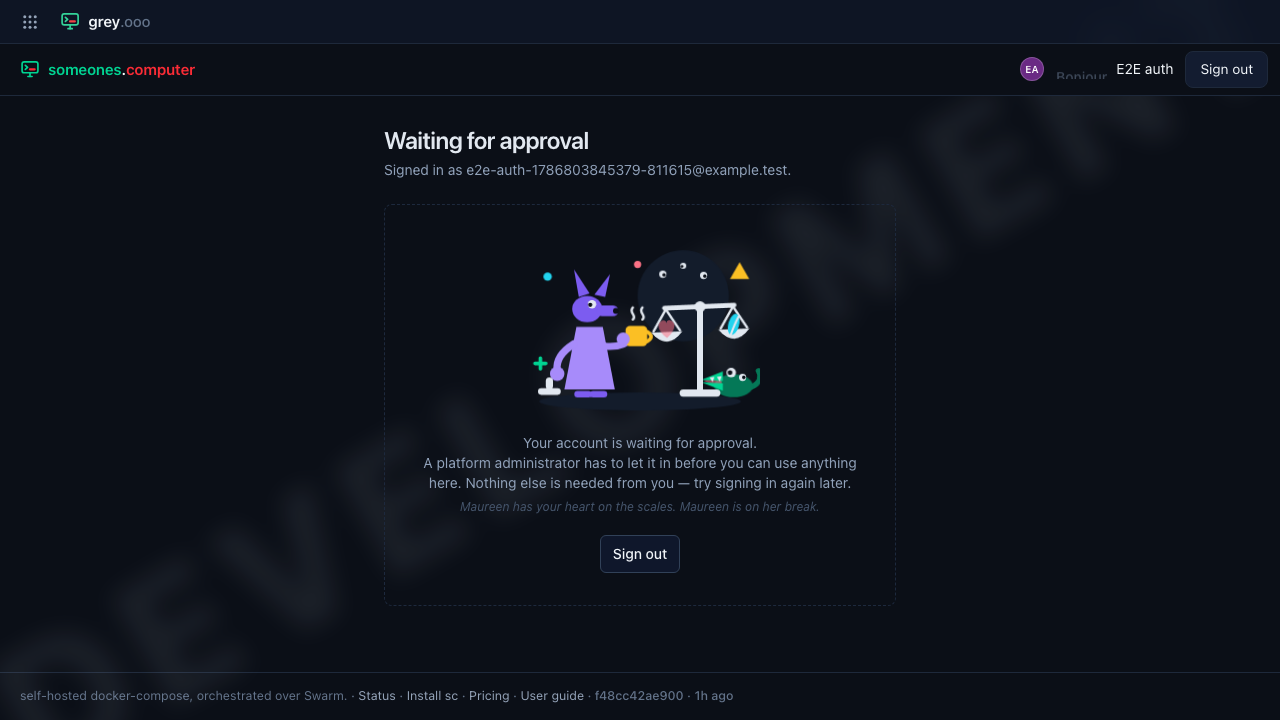
Nothing more is needed from you. Once an administrator approves the account, sign in again — approval changes what your account can do, which ends the session you were holding — and you land on the dashboard.
If the link has expired or has already been used, you get this instead. While you're still signed in it offers a new one straight away; from a device with no session it points you at the sign-in page, because we'll only ever send the link to the address on the account you're signed in as.
You can also create an account via GitHub or Google instead of a password — the buttons are on both the registration and sign-in forms. Those skip the confirmation step: the provider authenticated you with that address, which is better evidence than a link click. They still wait for approval, though — the provider vouches for who you are, not for whether you're allowed in here.
Signing in
/login accepts either your email or your username, plus your password.
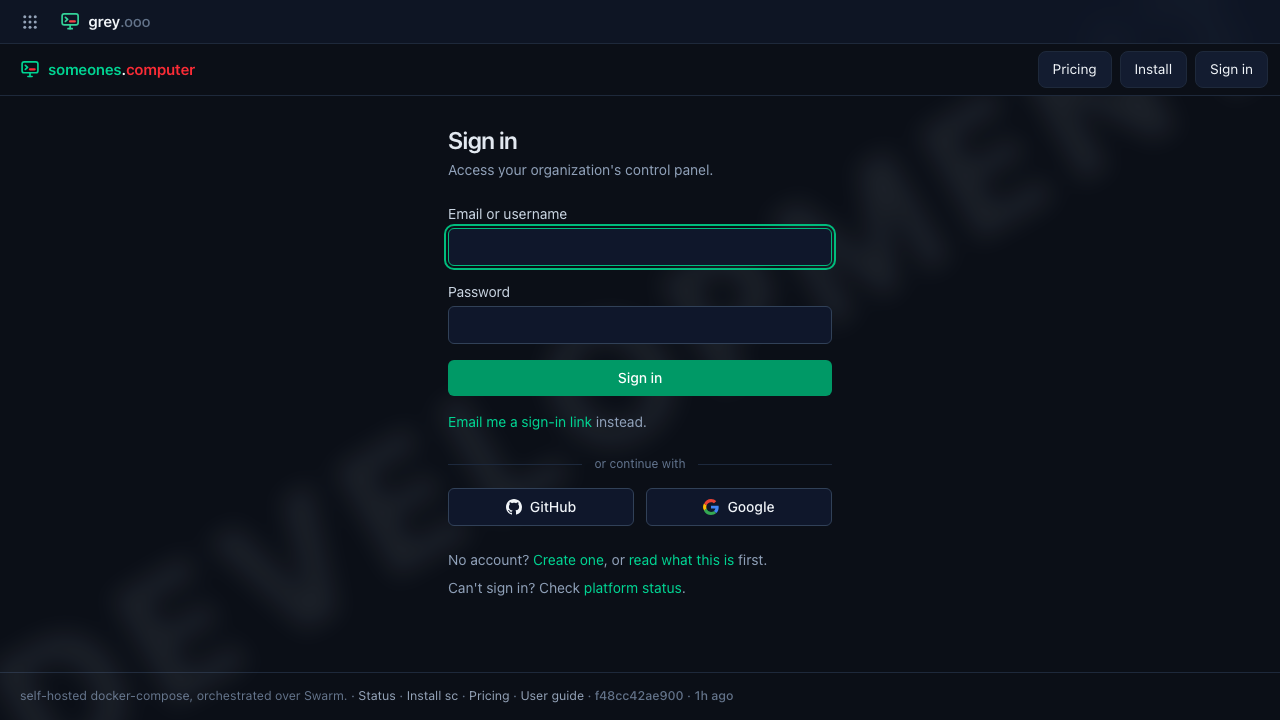
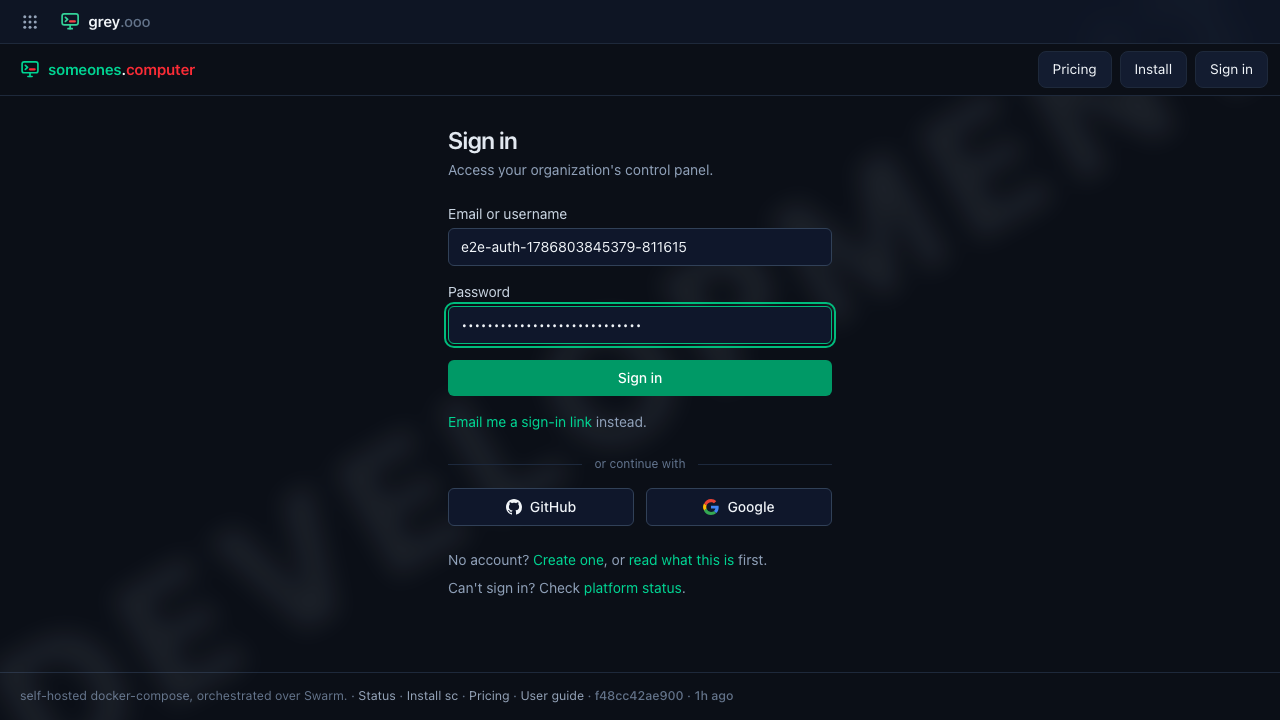
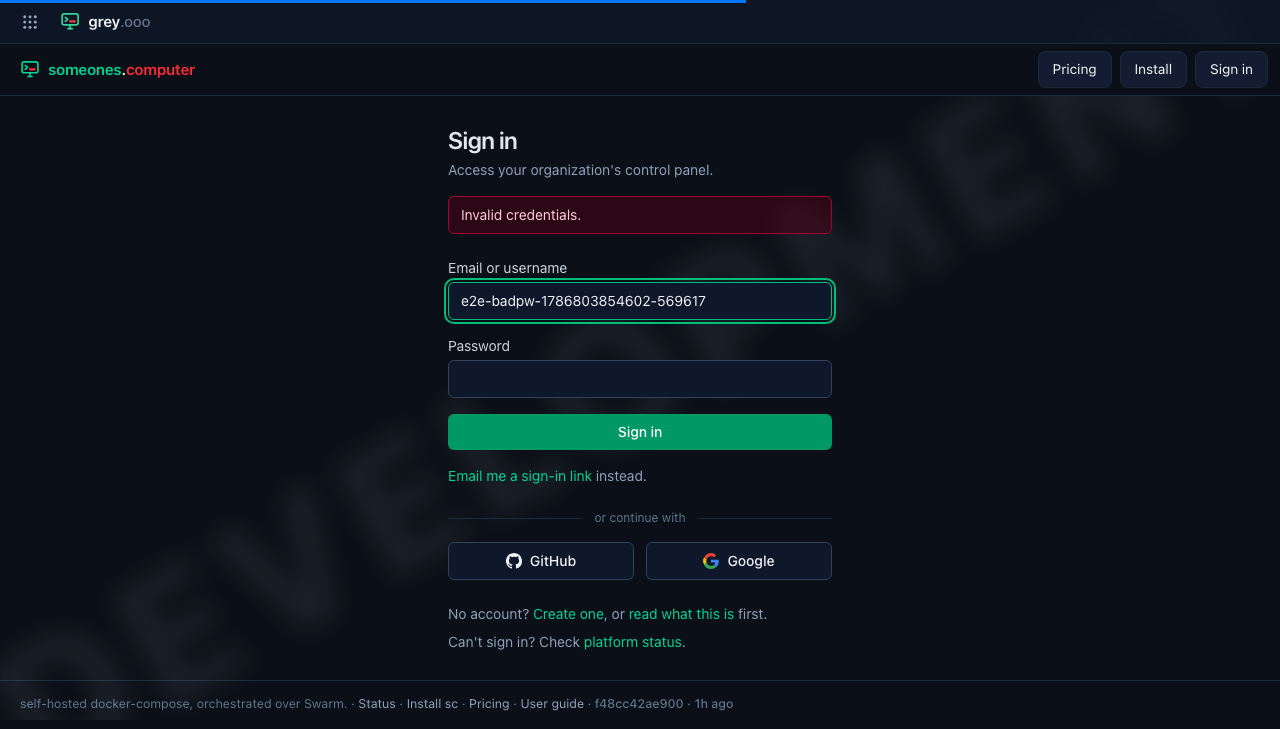
A wrong password (or username) doesn't say which one was wrong — just "Invalid credentials" — and leaves you back on the sign-in form with nothing cleared.
If you'd rather not type a password, Email me a sign-in link sends a one-time magic link instead.
Inside Grey.ooo, a company directory account (LLDAP) signs in through the same
form and the same button — there is nothing to pick. Enter your directory
username or the email address on your directory entry, plus your password,
and Sign in: the platform tries the directory first and falls back to a local
account when the directory has never heard of the identifier. You need to be a
member of the someones_computer_user or someones_computer_admin group; the
admin group also grants platform-admin access.
Two things follow from it being one button:
| A wrong password looks the same either way | The form says "Invalid credentials" without revealing whether the account is a directory one, so the sign-in page cannot be used to enumerate the directory |
| A directory outage does not lock local accounts out | If LLDAP cannot be reached, sign-in behaves as though the account is not in it and checks the local password as usual |
| You do not wait for approval | Being in the group is the approval — somebody granted it in the directory — so a directory account goes straight to the dashboard the first time it signs in, rather than into the queue a self-service sign-up joins |
What testing covers here
e2e/tests/auth.spec.ts drives the full register → confirm your email → wait
for approval → sign in → sign out → sign back in loop, plus the
invalid-password rejection, in a real browser (Playwright). The confirmation
step is walked the way you walk it — the link is read out of the stack's own
mailbox, because the token exists nowhere else — and
e2e/tests/confirm-email.spec.ts covers what that narrative would obscure: a
link used twice, and a re-sent one. It checks both gates as well as the happy
path: a just-registered account asking for /applications gets the holding page
back, and an unconfirmed one gets the first holding page.
It's covered end-to-end rather than left to the PHPUnit functional suite
because these are the flows every other Playwright test depends on — every
spec starts by registering its own throwaway user and getting it approved
(see e2e/tests/helpers/users.ts) — so a regression here would surface as
confusing failures everywhere else first. The screenshots on this page are
captured directly from those test runs (e2e/tests/helpers/screenshot.ts),
so they reflect the actual rendered app, not a mockup.